
Mini-Guide on Implementing Telegram Bot Commands
Commands are one of the most common ways to interact with bots. They start with / and consist of Latin letters, digits, and underscores.
Commands are highlighted like links; users can tap on a command to send it.
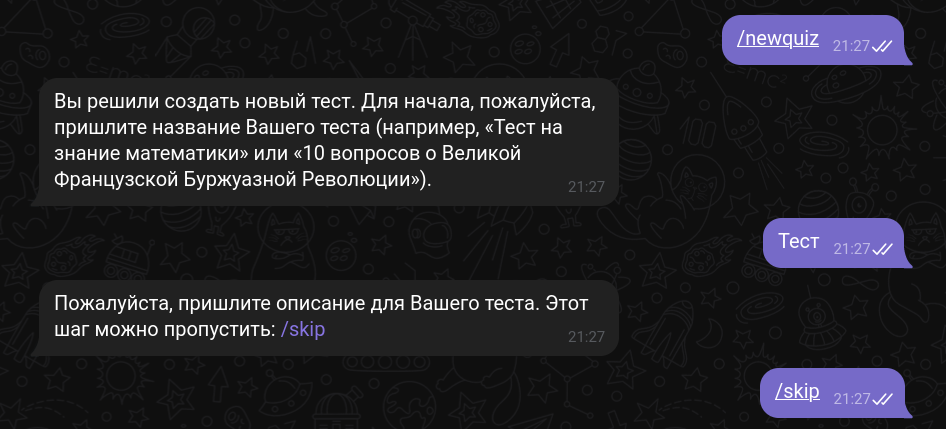
Command arguments
Of course, you can ask users to add text after a command, like /weather London.
But there's a catch: when users tap a command from the autocomplete menu, Telegram sends it immediately—no chance to add arguments. To append text without sending, users need to press Tab (desktop) or long-tap the command (mobile). Most users don't know this trick.
That's why Telegram recommends implementing specific commands without arguments, like /weather_london.
If that doesn't work for you, consider better alternatives:
- Buttons or inline mode for choosing options
- Follow-up questions in the next message for collecting information
Command lists
Through BotFather, you can define a list of commands with short descriptions. When users start typing a command, they'll see an autocomplete menu with these hints.
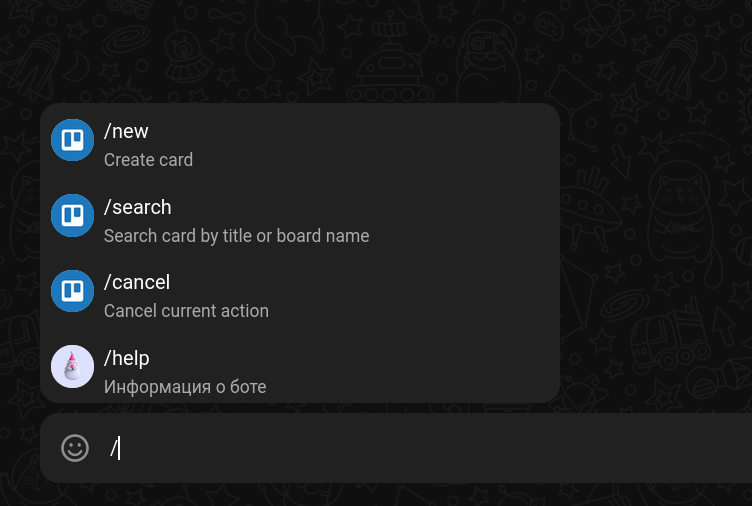
Users also see a “menu” button in chats with your bot—it opens the same autocomplete menu.
Special commands get special treatment: /help adds a “Help with bot” button to your bot's profile, /settings creates a “Settings” button, and /privacy adds a “Privacy policy” button.
You can also set command lists through the API instead of BotFather. This lets you:
- Show different menus for different users or groups
- Localize command descriptions based on user language
- Display admin-only commands based on user status (great for group moderation)
Commands in groups
In groups with multiple bots, commands need the bot's username to specify which one should respond: /start@examplebot.
When users tap a command in a bot's message, Telegram automatically adds the bot's username to it.
Your bot won't see commands ending with other bots' usernames. For more details, check the privacy mode explanation.