
How to Create and Configure a Telegram Bot with BotFather
You register and configure bots via @BotFather—which itself is an official Telegram bot. Use it to create the bot, get the token, fill the profile, and enable features that need Telegram-side configuration.
Create the bot
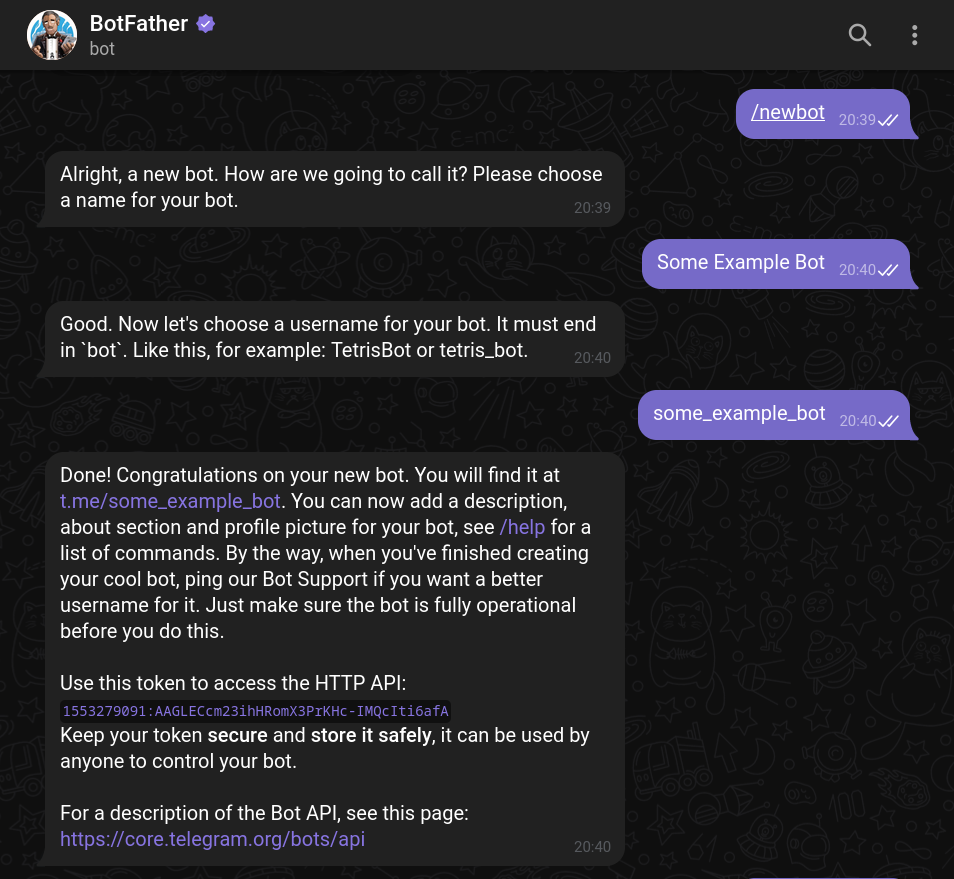
Once you start BotFather, it will suggest you create a bot with the /newbot command. You'll choose its name and username, and then the bot profile will be created.
You'll obtain the bot token, which looks like 1553279091:AAGLECcm23ihHRomX3PrKHc-IMQcIti6afA. Keep the token private: it is your key to control the bot.
Configure settings before users arrive
In BotFather, it's easy to edit bot settings using the /mybots command. This is how you customize the bot profile and configure special features—like forbidding being added to groups.
Many settings are also available in the @BotFather Mini App. It can be used to create bots, update icons and descriptions, configure web login, and enable newer features such as guest mode or managed bot flows.
You may register up to 20 bots.
Make the profile clear
You can open your bot's profile and click “edit” to change its avatar, name, intro, and “about” text. Use BotFather commands if your Telegram client does not show this editor.
Intro (aka description) is the text users see before they start a dialog with the bot. It can contain a picture or even a GIF.
UX TIP
Spend some time filling out the bot profile: it will be helpful and convenient for users. Add a profile picture to make the bot more distinguishable in the chat list. It may be a good idea to include your contacts in “About”.
INFO
In BotFather, you can also edit command hints or the inline mode placeholder.
Newer settings
Some platform features require BotFather configuration before the API methods become useful. For example, inline mode, guest mode, and Log In with Telegram are enabled or configured through BotFather.
Transfer ownership safely
If you need to transfer ownership to another person, you can do it through BotFather itself. This is often useful when you develop a bot for a client or organization.
To transfer, you must have 2FA enabled (for at least 7 days) and the recipient must have started a dialog with the bot.