How to Choose Buttons for Telegram Bot Flows
Use buttons when the user should choose, confirm, open something, or send a prepared answer. They are often easier than asking users to remember commands or type structured input.
Telegram bots have two main button types: inline buttons appear below the sent message, and keyboard buttons are suggestions that users see near the message input.
Both kinds of buttons may be shown in multiple rows of multiple buttons. You can read more about button layouts at the bottom of this page.
Choose the right button type
Use inline buttons when the action belongs to a specific message: confirming something, opening a link, switching to inline mode, or changing the message after a click.
Use keyboard buttons when you want to suggest what the user should send next. They are more intrusive because they take space near the message input, so it is better to show them only when they are really helpful.
Recent Telegram clients can also show styled bot buttons with colors and custom emoji. Use styling as a visual hint only: button text should still make sense without the color or emoji, because older clients and some libraries may not support every visual option yet.
Use inline buttons for message actions
Use inline buttons when the button action should stay attached to one message. They are shown together with the message and work well for confirmations, links, callbacks, and message edits.
Callback button
Use callback buttons when the bot should handle the click itself. When pressed, the button sends an update to the bot.
When a user clicks a callback button, the bot can show a notification or an alert (see the video below). To provide visual feedback, the bot should typically edit the message or react in some other visible way. Until the bot reacts, the button will display a “loading” animation.
When receiving updates, your program can identify which button was pressed using a special parameter that you specify when creating the button.
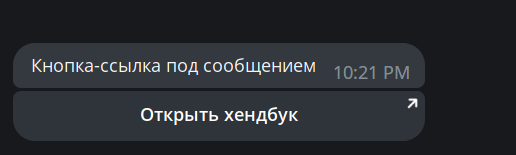
URL button
Use a URL button when the action is opening a link.
In Bot API, a URL button can be converted to a user mention button by specifying tg://user?ID=123456789 as the URL. In Telegram API, user mention buttons are implemented differently.
Switch-to-inline button
Use a switch-to-inline button when a message should lead the user into bot inline mode. You can configure this button to open inline mode in the current chat or display a chat selection dialog first. You can also pre-fill a text query that will appear next to the bot's username (which the user can modify).
Request peer button
Use a request peer button when the bot needs the user to choose and share one of their chats. When clicked, it displays a chat selection dialog.
You can configure this button flexibly: for example, the chat selection may include only channels with usernames or groups where the user is an admin.
Other inline buttons
Use these only for the flows that require them:
- Callback game button. Opens an HTML game.
- Pay button. Used for integrated payments.
- Web view button. Opens bot web interface.
- Login URL button. Used for authorization on sites; for example, official @discussbot used it before Telegram introduced native comments. The button works similarly to Log In with Telegram but doesn't require entering the phone number and confirming the authorization.
- Rich result buttons may also be used with newer rich messages and Mini App flows, depending on the message type and current Bot API support.
Use keyboard buttons for suggested replies
Use keyboard buttons when the next expected user action is sending a prepared reply. They are shown below the message input field (in web versions they can be accessed by clicking the command button ⌘). When pressing a keyboard button, the user simply sends its text.
In Telegram mobile apps, keyboard buttons replace the keyboard; but the user is able to hide them and see the regular keyboard again.
Use special keyboard buttons when the bot needs one of these user-confirmed actions:
- Ask the account phone number.
- Ask the user's geolocation.
- Open a poll creation menu.
- Request a user, chat, or managed bot.
Telegram asks the user for confirmation before sharing this data or opening these menus.
There's a “resize keyboard” option which determines whether the button keyboard should have flexible height. For some reason it's off by default, so the buttons look stretched:
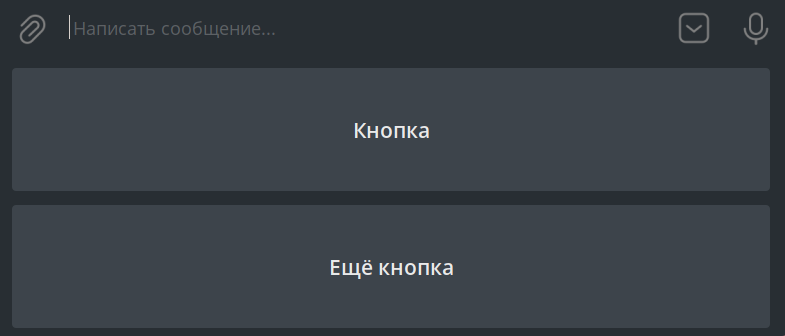
Send keyboard buttons together with a message. If the keyboard is needed only once, send it with the option to hide after use.
In groups, keyboard buttons are visible to all members by default. Alternatively, a bot can show buttons only to mentioned users, which are:
- Users whose usernames are included in the message text
- The sender of the message to which the bot is replying
Keep button layouts readable
Both inline buttons and keyboard buttons may be aligned in multiple rows. A row may contain up to 8 buttons. The total limit of buttons shown at once is 100.
If you place multiple buttons in a row, you should make sure that their labels look OK in the mobile apps: long labels get truncated on narrow screens.